There is a strange blind spot in how we pick tools. We will spend a full afternoon benchmarking three clustering algorithms, read four preprint comparisons, and argue about resolution parameters in lab meeting. Then we go back to typing ls -lah a hundred times a day, a command we chose by accident in our first week of using a terminal and have never revisited since.
This series is about that blind spot. Over the next eight posts I want to look at the small command line utilities that sit underneath everything else we do. Not pipelines, not analysis packages, just the plumbing. The tools you touch more often than any R package you have ever loaded.
We start with the most used command of all.
What ls was actually designed for 🕰️ Link to heading
ls dates back to the earliest Unix systems in the early 1970s. It was written for teletype terminals and monochrome CRTs. Every design decision it made was correct for a world where output was expensive, screens were 80 columns wide, and colour did not exist.
Those constraints are gone. The defaults are not.
Run plain ls today and you get filenames in columns. No sizes, no dates, no types, no indication of anything. To get useful information out of it you memorise a flag combination, wrap it in an alias, and then never think about it again. Most people I know settled on ls -lah sometime in their first year and stopped there.
The problem is not that ls is bad. It is that the useful behaviour is opt in, and the opt in is ugly.
What eza changes ✨ Link to heading
eza is a modern replacement for ls, written in Rust and distributed as a single binary with no runtime dependencies. It is not a wrapper or a shell function. It is a separate program that does the same job with better defaults.
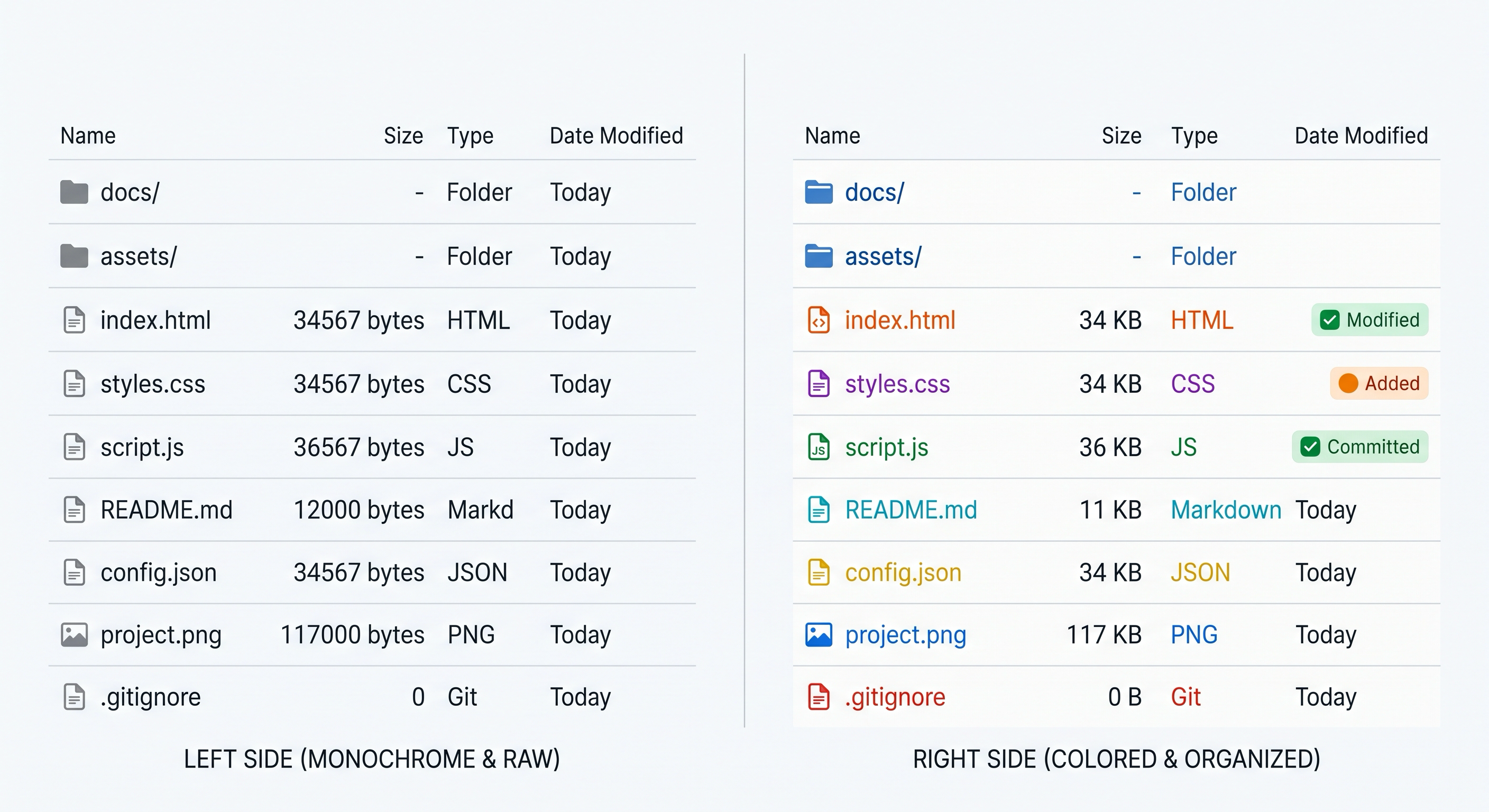
The differences you notice in the first five minutes:
Colour by file type, out of the box. Directories, executables, symlinks, images and archives are all visually distinct without you configuring LS_COLORS or copying someone’s dotfiles.
Human readable sizes by default. No -h flag required. A 4.2 GB BAM file reads as 4.2G, not 4509715660.
Git integration. eza --long --git adds a column showing the git status of each file. Modified, new, ignored, staged. This is the feature I did not know I wanted and now cannot work without.
A built in tree view. eza --tree --level=2 replaces the separate tree utility, and it respects the same filters and sorting as the flat view.
Sane sorting. --sort=size, --sort=modified, --sort=extension. Readable words instead of remembering which of -S, -t and -X does what.
Where this actually earns its keep in analysis work 🧬 Link to heading
Computational biology produces some of the messiest directories in software. A single scRNA-seq project accumulates raw FASTQs, Cell Ranger outputs, intermediate matrices, serialised R objects, three generations of the same plotting script, and a folder called old that nobody will ever open again.
Two commands do most of the useful work here.
The first is finding where your storage went:
eza --long --sort=size --reverse
Sorted largest first, sizes already readable. On a project directory this immediately shows you that the 12 GB of intermediate objects you meant to delete two months ago are still sitting there. On a shared cluster filesystem with a quota, this is not cosmetic.
The second is a reproducibility check:
eza --long --git scripts/
Every script with its git status in a column. Which analysis scripts are modified but uncommitted. Which are untracked entirely. If you have ever discovered that the version of a script that produced a figure was never committed, you understand why this matters. Reproducibility failures in research code are usually not exotic. They are usually a file that never made it into version control.
There is a third pattern worth knowing for anyone working with sequencing data:
eza --long --sort=extension
Groups your FASTQs, BAMs, RDS files and scripts together. Useful when you inherit a directory from a departing lab member and need to work out what is actually in it.
The exa footnote 📜 Link to heading
Worth knowing the history, because outdated tutorials are everywhere.
The original project was called exa, written by Ben S. In September 2023 it was declared unmaintained. The maintainer had been running it alone, hit burnout, and pointed users to a community fork rather than let the project rot quietly. That fork is eza, now maintained by a group rather than one person.
This is a small thing but I think it is worth naming. A solo maintainer handing a widely used project to a community fork, publicly and gracefully, is a healthier outcome than most abandoned repositories get. If you find a blog post telling you to cargo install exa, it was written before that handover. Install eza.
The flags worth putting in your config ⚙️ Link to heading
Two behaviours are worth turning on permanently rather than remembering to ask for.
The first is --group-directories-first. Directories at the top, files below. This is how you think about a folder and it costs nothing.
The second, if your terminal font supports it, is --icons. This sounds like decoration and mostly is, but in a directory holding a mix of scripts, notebooks, serialised objects and data files, a glyph is faster to parse than an extension. If you work over SSH to machines with unpredictable font support, leave it off, because broken glyphs are worse than no glyphs.
Beyond that, eza absorbs a tool you may be installing separately. eza --tree --level=3 does what tree does, but with the same colouring, sorting and git awareness as the flat view, and it respects --ignore-glob so you can drop node_modules and renv/library out of the output. One fewer binary to install on every new machine.
A pattern I use constantly when picking up a project after a break:
eza --tree --level=2 --long --sort=modified
Structure and recency together. It answers the question “what was I last doing here” better than anything else I have found, and it is considerably faster than opening the folder in a file browser over a mounted network drive.
Installation and one caveat 📦 Link to heading
Via cargo:
cargo install eza
It is also packaged for most distributions, Homebrew, and available as a prebuilt binary from the releases page, which matters if you are installing on a cluster where you do not control the toolchain.
Then the alias. Mine is minimal:
alias ls='eza --group-directories-first'
alias ll='eza --long --git --group-directories-first'
alias lt='eza --tree --level=2'
One caveat that is worth stating plainly. Aliasing ls only affects your interactive shell, not scripts, because non interactive shells do not load aliases. That is the correct behaviour and you should not try to work around it. Scripts that parse ls output are already fragile for other reasons, and pointing them at a different tool with different formatting will not improve matters. Use eza for reading, use find, fd or globbing for programmatic work.
The bottom line 🎯 Link to heading
There is a category of tool that is easy to dismiss because the improvement per use is tiny. eza saves you perhaps two seconds and a small amount of squinting each time you list a directory.
Multiply that by a hundred times a day, every working day, for years.
The tools worth upgrading are not always the impressive ones. Sometimes they are the ones you have used so many times that you stopped seeing them at all.
Next post: zoxide, and the realisation that cd has the same problem.