Type cat at a BAM file once and you will spend the next minute wondering why your prompt has turned into line-drawing characters, why your keystrokes no longer echo, and whether reset will fix it. It will, usually.
That is the part of cat nobody writes about. It is not just unhelpful for reading files. It is actively unsafe to point at a file whose contents you are not already sure about, which in a project directory full of pipeline outputs is most of them.
Why cat breaks your terminal 💥 Link to heading
cat does exactly what it was built to do: it sends the bytes of a file to standard output, unmodified. That is the correct behaviour for concatenating files, which is its actual job.
But your terminal interprets some of those bytes as instructions rather than text. A binary file contains, by chance, byte sequences that mean “switch to the alternate character set”, “change the colour”, or “stop echoing input”. cat faithfully passes them along, your terminal obeys, and you are left with a session that has to be reset.
So a small tax gets added to every file you are curious about. Is this safe to look at? Is it text? Is it too big to dump? Most of us resolve it with a second command, file or head, before daring to look. That is two commands to answer “what is in here”.
What bat does instead 🦇 Link to heading
bat is built for the reading case rather than the concatenating one, and the consequence is that you can point it at anything in your project directory.
Text gets a real view. CSV and TSV, samplesheets, BED, GTF and GFF, uncompressed FASTQ, R and Python scripts, nextflow.config, Snakefiles, YAML, JSON, logs. Syntax highlighting where bat knows the format, clean plain text where it does not, line numbers either way.
Long files get paged, not dumped. bat pipes through less automatically when the content is taller than your screen, so a 200,000-line GTF scrolls instead of flooding your scrollback.
Binary gets refused politely. Point bat at a BAM, a .gz, an HDF5 matrix or an .RData file and it tells you it is binary and declines to print it. No control characters reach your terminal. This is the important one: bat does not decode those formats, and it does not pretend to. What it does is fail safely, which is all you need from a first look.
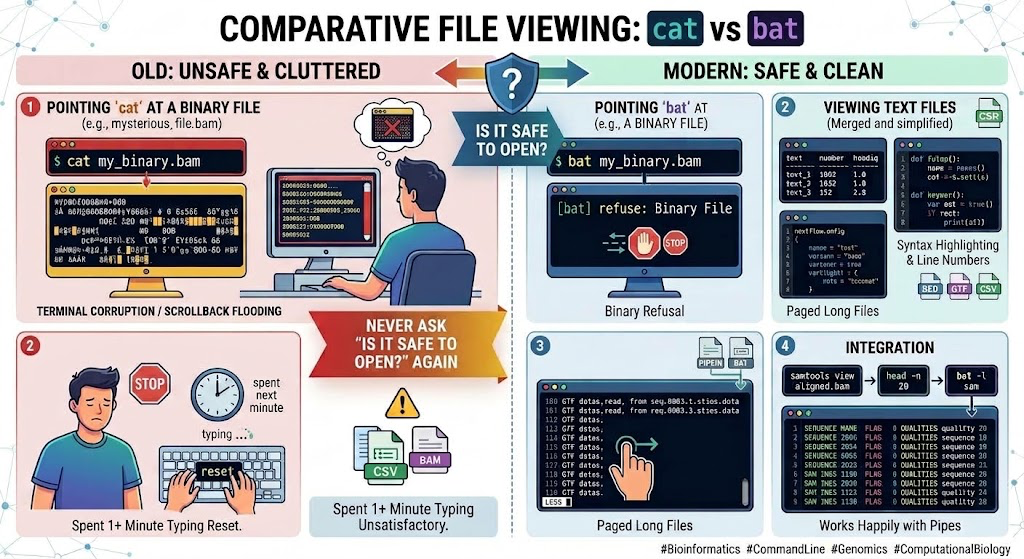
Put together, that removes the decision. You no longer ask whether a file is safe to look at, you just look. Over a working day spent poking around pipeline outputs, that is the thing I actually notice.
The commands worth knowing 📋 Link to heading
bat samplesheet.csv: highlighted, numbered, pagedbat -r 180:240 main.nf: a line range, for when an error message gives you a line numberbat -A samplesheet.csv: shows non-printing charactersbat -d analysis.R: only the lines that changed since your last commitbat -l yaml params.config: forces a syntax when the extension misleadsbat -p file: plain output with no gutter, for copying text cleanly
And the detail that makes it safe to adopt: when bat’s output is piped or redirected, it drops the highlighting, the gutter and the pager and behaves exactly like cat. bat file | grep x works the way you expect, so aliasing it will not quietly break a script you wrote six months ago.
Pairing it with the decoders 🧬 Link to heading
Because bat is happy reading from a pipe, the binary formats it refuses to open become one step away rather than a different workflow:
samtools view aligned.bam | head -n 20 | bat -l tsv
zcat reads.fastq.gz | head -n 8 | bat
bcftools view variants.vcf.gz | bat -l tsv
The decoder does the decoding, bat does the displaying. You keep one viewer for everything and swap what feeds it.
The flag that pays for the install 🔍 Link to heading
bat -A deserves its own section, because it catches a class of bioinformatics failure that is otherwise miserable to debug.
Tabular formats in genomics are strict about whitespace. BED, GTF and GFF are tab-separated. Samplesheets for nf-core pipelines and demultiplexing are parsed field by field. Three invisible problems break them constantly:
Carriage returns from Excel. A samplesheet saved on Windows ends every line with \r\n. The pipeline reads the last column as sample_A1\r, which matches nothing. bat -A shows the carriage return as a visible symbol at the end of each line.
Spaces pretending to be tabs. A BED file edited in the wrong text editor, or pasted from a web page, has spaces where tabs should be. It looks identical in cat. In bat -A, tabs render as arrows and spaces as dots, and the difference is immediate.
Trailing whitespace in identifiers. sample_A1 with a trailing space is a different sample name from sample_A1, and joins on it fail silently. bat -A marks it.
GNU cat -A shows the same information, to be fair. But it renders tabs as ^I and line ends as $ in an unhighlighted wall, and in practice nobody can read it. bat shows the same thing in a form you can scan in seconds.
The habit worth building: when a pipeline rejects a samplesheet and the file looks completely fine, run bat -A on it before you do anything else.
Where else it earns its place 📝 Link to heading
Pipeline configuration. nextflow.config, Snakefiles, parameter YAMLs and SLURM submission scripts are exactly the files where an unclosed quote or a misindented block causes a confusing failure later. Highlighting makes those errors visible before you submit the job, not after it has sat in the queue for an hour.
Reviewing your own work. The git gutter answers “did I edit this script since the last commit, and where?” without leaving the terminal. bat -d narrows the view to just those hunks with a little context, which is a faster pre-commit check than reading a full git diff.
Reading other people’s code. When you clone a repository to understand how a method was actually implemented, highlighting and line numbers turn a wall of R into something you can navigate, and something you can refer to precisely when you email the author.
Making it part of the toolchain 🔗 Link to heading
Previews in fzf. If you use fuzzy finding, bat turns the preview pane into something readable:
fzf --preview 'bat --color=always --style=numbers --line-range=:200 {}'
Finding a file and reading it become the same action. Note --color=always: bat strips colour when piped, so you have to ask for it explicitly here.
Highlighted man pages. Add this to your shell configuration:
export MANPAGER="sh -c 'sed -u -e \"s/\\x1b\\[[0-9;]*m//g; s/.\\x08//g\" | bat -l man -p'"
The sed strips the formatting man adds itself, colour codes and the backspace tricks it uses for bold and underline, which otherwise confuse the highlighter.
bat-extras wraps bat around tools you already use: batgrep for ripgrep results with highlighted context, batman for man pages without the export above, batdiff for git diffs, and batwatch for watching a file change. Optional; the base tool is complete without them.
Configuration worth doing once ⚙️ Link to heading
bat reads a config file whose location you can find with bat --config-file. Three settings are worth setting and forgetting:
--theme="ansi"
--style="numbers,changes,header"
--italic-text=always
Run bat --list-themes first. The ansi theme has one practical advantage on a cluster: it uses your terminal’s own colours rather than imposing its own, so it looks correct on every machine you SSH into instead of fighting whatever colour scheme is already there.
For file types bat does not recognise, map them to a syntax it already knows:
--map-syntax "*.smk:Python"
--map-syntax "*.nf:Groovy"
A few honest notes 📌 Link to heading
bat is a viewer, not a converter. It will not decompress .gz or decode BAM, CRAM or HDF5. It will tell you they are binary and leave your terminal alone, which is the correct behaviour for a first look, but the decoders above are still how you read the contents.
On Debian and Ubuntu the binary is called batcat, because of a name clash with an older package. Add alias bat=batcat and move on.
Aliasing cat is reasonable here. Because bat behaves like cat when piped, alias cat=bat is mostly safe, and given everything above it is arguably safer than the original. I still keep them separate: I type bat when I want to read and cat when I want to pipe, and the intent stays visible in my shell history.
The lineage. People piped files through pygmentize or highlight into less long before bat existed, and ccat did highlighted cat in Go. bat’s contribution is bundling highlighting, paging, binary detection and git awareness into one fast binary with defaults good enough that you never configure it. I first wrote about it in January 2025, and I had the emphasis wrong then: I sold it on the highlighting, when the real win is never having to ask whether a file is safe to open.
Setup 🛠️ Link to heading
cargo install --locked bat
brew install bat
Or apt install bat on Debian and Ubuntu, remembering the batcat alias. Prebuilt binaries are on the GitHub releases page, which is the route to use on a cluster without root access.
The bottom line 🎯 Link to heading
cat was built for joining files and it still does that perfectly. What it was never built for is the thing we use it for fifty times a day: pointing at a file to find out what is in it.
bat is the command you can point at anything in a project directory without checking first. CSV, TSV, BED, GTF, FASTQ, a config you have never opened, a log from a failed job. It shows you what it can, refuses what it cannot, and never leaves you typing reset.
Next post: tmux, and why your analysis should not die when your laptop goes to sleep.