Every tool in this series so far has been a modern replacement for something old. tmux is the exception. It is the oldest tool here, it is written in C, and it replaces nothing.
It belongs in the series anyway, because the others remove friction and this one removes a failure mode: the most fragile part of remote research computing is your connection.
The problem nobody plans for 🔌 Link to heading
You SSH into the cluster, start an interactive R session, load a 40 GB Seurat object, and spend twenty minutes getting it into shape. Then the train goes into a tunnel. Or the Wi-Fi drops. Or you close your laptop to walk to a meeting.
The connection dies, and it takes everything running inside it with it. The R session is gone. The object you spent twenty minutes building is gone. Whatever was printing to the screen is gone.
This happens because processes started from an SSH session belong to that session. When the connection ends, the shell receives a hangup signal and passes it to its children. Your work was never really running on the server. It was running on the server on behalf of a connection, and connections are fragile.
nohup and & solve part of this for a single command you do not need to interact with. They do nothing for an interactive R or Python session, which is exactly where the expensive state lives.
What tmux does 🧱 Link to heading
tmux, a terminal multiplexer, runs a small server process on the remote machine that owns your terminal sessions. Your SSH connection becomes a window into that server rather than the thing holding your work. When the connection drops, the window closes. The work carries on.
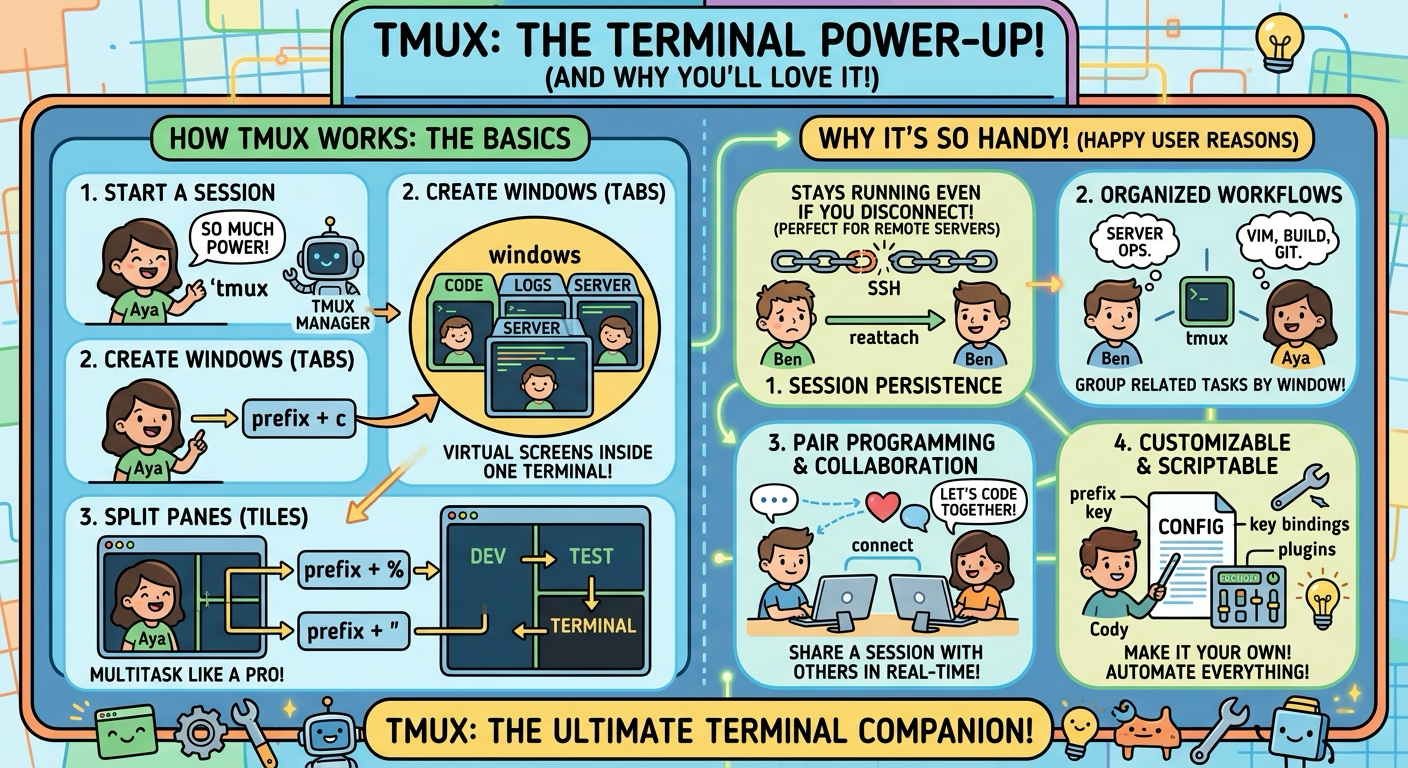
The basic loop takes about a minute to learn:
tmux new -s spatial      # start a named session
# ... work ...
# press Ctrl-b then d    # detach: the session keeps running
tmux ls                  # later, from any connection: list sessions
tmux attach -t spatial   # pick up exactly where you left off
Everything inside the session, including running processes, scrollback and your R environment, is where you left it.
The idiom worth learning instead of new and attach separately is -A, which attaches if the session exists and creates it if it does not:
tmux new -A -s main
One command that always does the right thing, which means it can go in a shell alias or an SSH command without you thinking about state.
One login, a whole workspace 🪟 Link to heading
Persistence is why you install tmux. Splitting is why you keep using it.
A session holds windows, which behave like tabs, and each window can be split into panes. All of it runs over one SSH connection. Every key starts with the prefix Ctrl-b:
Ctrl-b c: new windowCtrl-b ,: rename the current windowCtrl-b n/Ctrl-b p: next and previous windowCtrl-b <number>: jump straight to a windowCtrl-b w: interactive list of windows across sessionsCtrl-b %: split the pane side by sideCtrl-b ": split the pane top and bottomCtrl-b+ arrow keys: move between panesCtrl-b z: zoom the current pane to full screen and backCtrl-b {/Ctrl-b }: swap the current pane with its neighbourCtrl-b x: kill the current paneCtrl-b s: interactive list of sessionsCtrl-b d: detachCtrl-b ?: list every binding, which is the only one you really have to remember
My usual layout on a cluster is three panes: an R or Python session on the left, watch -n 30 squeue -u $USER in the top right to keep an eye on submitted jobs, and a plain shell in the bottom right for moving files. Naming windows with Ctrl-b , matters more than it sounds like it should: three windows called bash tell you nothing, while analysis, jobs and transfers are navigable a week later.
Ctrl-b z is the binding I use most. Panes are for keeping things in view, and zoom is for when one of them briefly needs the whole screen.
Scrollback and copying 📋 Link to heading
tmux keeps its own scrollback buffer per pane, reached with copy mode:
Ctrl-b [: enter copy mode, then arrow keys or Page Up to scroll/and?: search forwards and backwards through the buffer, once you have set vi keysq: leave copy mode
Searching the buffer is the underrated part. When a long-running script has printed a warning several thousand lines ago, Ctrl-b [ then /warning finds it without rerunning anything.
Add this to your config to get vi-style movement and searching in copy mode:
setw -g mode-keys vi
The cluster trick worth knowing 🔁 Link to heading
synchronize-panes sends your keystrokes to every pane in the window at once:
# Ctrl-b : then type
setw synchronize-panes on
Open a pane per node, turn it on, and one command runs everywhere. Turn it off the moment you are finished, because forgetting is how you run the same rm four times. I bind it to a key so the state is deliberate:
bind S setw synchronize-panes \; display "panes synchronised: #{?pane_synchronized,ON,OFF}"
A config worth having ⚙️ Link to heading
tmux works without configuration, but a handful of lines in ~/.tmux.conf remove most of the friction:
set -g mouse on              # click to select panes, scroll with the wheel
set -g history-limit 50000   # far more scrollback than the default
set -g base-index 1          # number windows from 1, matching the keyboard
setw -g pane-base-index 1
setw -g mode-keys vi         # vi movement and search in copy mode
set -g renumber-windows on   # close a window, no gap in the numbering
set -sg escape-time 10       # stop the escape key feeling laggy in vim
Reload without restarting with tmux source-file ~/.tmux.conf.
One trade-off to know about mouse on: it hands scrolling to tmux, which means your terminal’s own click-and-drag selection no longer works the way you expect. Hold Shift while selecting to bypass tmux and use the terminal’s native copy.
Plenty of people also remap the prefix from Ctrl-b to Ctrl-a. I would leave it alone at first. The default is what you will find on every other machine and in every tutorial, and learning it once beats learning it twice.
Scripting a layout 📐 Link to heading
Because tmux can be driven entirely from the command line, a workspace you set up often can be a script:
#!/usr/bin/env bash
tmux new-session -d -s analysis -n main
tmux send-keys -t analysis:main 'cd $PROJECT && R' C-m
tmux split-window -h -t analysis:main
tmux send-keys -t analysis:main.2 'watch -n 30 squeue -u $USER' C-m
tmux split-window -v -t analysis:main.2
tmux attach -t analysis
Run that once at the start of a project and your environment is identical every morning. For anything more elaborate, tmuxp and tmuxinator define layouts in YAML, but a six-line shell script covers most cases without another dependency.
The HPC caveats that actually matter 🧬 Link to heading
Clusters add wrinkles that general tmux guides skip.
Login nodes are shared, and tmux does not change that. Keeping a session alive on a login node is fine. Running heavy computation on one is not, and many clusters kill long-running or memory-hungry processes there automatically. The right pattern is to start tmux on the login node and request an interactive job inside a pane, with srun --pty bash or your scheduler’s equivalent.
That order matters. If you run tmux inside an interactive allocation, the tmux server belongs to that allocation, and when the job’s time limit expires the server dies with it. tmux on the login node, compute inside the pane: the session survives the allocation ending, and you can request a new one in the same pane.
Your session lives on one specific login node. Many clusters put several login nodes behind one hostname and assign you to whichever is least busy. If your session “disappeared”, you probably landed on a different node. Note which node you started on and SSH to it directly to reattach.
tmux is not a job scheduler. For anything that runs for hours unattended, submit a batch job. tmux is for interactive work you want to survive interruptions, not a way around the queue. Sessions also end when the node reboots, which clusters do for maintenance.
Environment variables go stale on reattach. A session started yesterday still holds yesterday’s SSH_AUTH_SOCK and DISPLAY. Reattach today and agent forwarding or X11 may silently fail inside the old panes. tmux show-environment shows what the session thinks is true, and tmux’s update-environment setting refreshes a list of variables on attach, though existing shells keep the values they started with. When agent forwarding stops working after a reattach, this is almost always why.
Connecting straight into it 🔗 Link to heading
Once tmux is a habit, the SSH command becomes:
ssh -t cluster 'tmux new -A -s main'
-t forces a terminal, -A attaches or creates. One command from your laptop to the same workspace you left, and closing the laptop is no longer an event.
A few honest notes 📌 Link to heading
GNU screen did this first. screen has provided detachable sessions since 1987 and is still installed on many systems. tmux, released in 2007, is easier to configure and much better at splitting, which is why it won. If screen is what your cluster has, the persistence idea is identical: screen -S name, Ctrl-a d to detach, screen -r name to return.
Zellij is the modern alternative. Zellij is written in Rust and is far friendlier out of the box, with on-screen key hints and layouts that need no config file. On my own machines it is a pleasure. I still recommend tmux first for research computing for one boring reason: it is already installed on nearly every cluster you will log into, and zellij is not. A tool you have to install on ten machines is a tool you will not use on the eleventh.
Sessions surviving reboots is possible but optional. tmux-resurrect saves and restores layouts, and tmux-continuum automates it. Both are good. Neither is worth configuring until you have lived with plain tmux long enough to know what you want back.
The learning curve is the prefix key, and it is short. Ctrl-b feels awkward for about a day. After that the only binding you genuinely need to remember is Ctrl-b ?, which lists all the others.
Setup 🛠️ Link to heading
tmux is almost certainly already on your cluster; check with tmux -V. Locally:
brew install tmux
sudo apt install tmux
If you are on a machine without root and without tmux, this is one of the harder tools to install from source because of its ncurses and libevent dependencies. That is worth knowing before you plan a workflow around it.
The bottom line 🎯 Link to heading
The other tools in this series save you time. tmux saves you work you have already done.
Your SSH connection is the most fragile part of any remote analysis, and tmux moves your session off it and onto the server, where a dropped signal or a closed laptop lid cannot reach it. The workspace it gives you afterwards is a bonus.
If you work on a remote machine and you install only one tool from this series, make it this one.
Next post: fd, and the find syntax you look up every time.