On your own laptop, finding a file is easy. You type part of its name into a search box and the computer shows you where it is. You barely think about it.
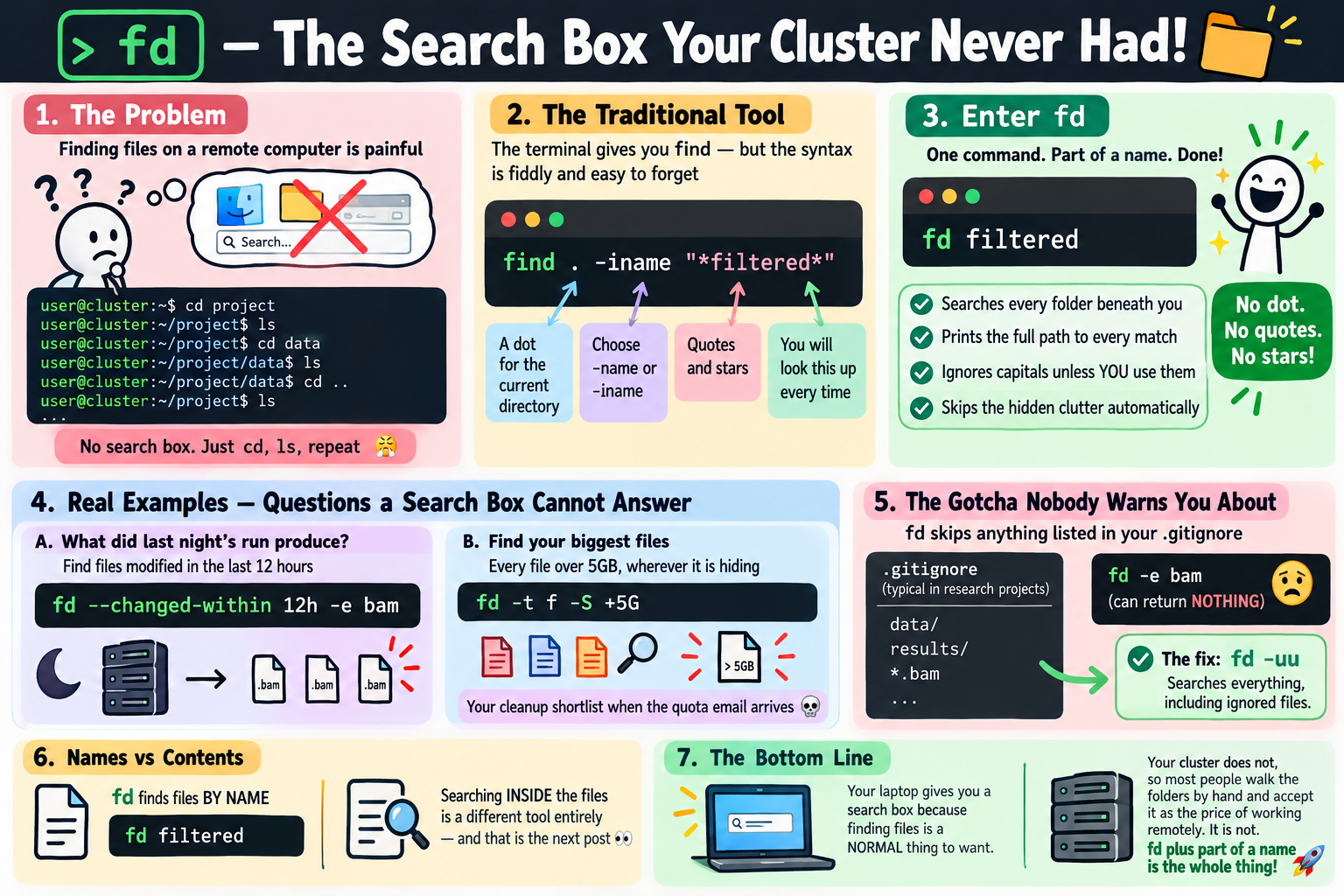
On a remote computer there is no search box. No Finder window, no File Explorer, no magnifying glass in the corner. There is a blank prompt and a folder structure you cannot see. So most people do the only obvious thing: walk into folders one at a time, list the contents of each, and hope something looks familiar.
fd is the search box you are missing.
The whole idea 🔍 Link to heading
fd filtered
That prints every file and folder beneath where you are standing whose name contains filtered, along with the path to each one.
That is the tool. Most days, that is all I type.
You can point it at a particular folder, and it is relaxed about capital letters:
fd sample results/
A lowercase search ignores capitalisation. If you type a capital letter yourself, it starts paying attention to them. That is almost always what you meant either way.
If you have used the terminal before, fd is a replacement for find. The same search in find is find . -iname "*filtered*", which is four pieces of syntax for one idea, and the reason most of us look it up every time.
A few variations worth knowing 📋 Link to heading
fd -e bam: only files ending in.bamfd -t f: only files, not foldersfd -t d: only foldersfd -E work pattern: skip a folder you do not care aboutfd -uu pattern: search absolutely everything (see the warning below)
That is enough to be genuinely useful. Everything else in fd is a refinement of these.
Two questions a search box cannot answer 🧬 Link to heading
This is where fd stops being a convenience.
What did last night’s run actually produce?
fd --changed-within 12h -e bam
Every BAM file touched in the last twelve hours. Pipeline folders accumulate months of output, and usually you only care about what is new.
Which files are eating my disk space?
fd -t f -S +5G
Every file over five gigabytes, wherever it is hiding. When the cluster emails to say you are near your quota, that one line is your shortlist.
Neither of those is something a graphical search box does well, and both answer questions you genuinely have.
The default that will hide your data ⚠️ Link to heading
One thing to know before it confuses you.
fd ignores anything listed in your project’s .gitignore file. For code that is exactly right: nobody wants search results from a folder full of temporary build files.
For research projects it can mislead you, because our .gitignore files usually list the directories holding the data:
data/
results/
*.bam
Search that project with fd -e bam and fd will report nothing at all. It is not broken. It is obeying instructions you wrote for a different tool, for a different reason.
fd -uu turns the filtering off. I keep an alias so it is a deliberate choice rather than something I forget:
alias fda='fd -uu' # fd all
Plain fd for code, fda for everything else.
Names, not contents 📖 Link to heading
Worth being clear about the boundary. fd searches file names. If you want to search what is inside the files, that is a different tool, and it is the subject of the next post.
Setup 🛠️ Link to heading
brew install fd
cargo install fd-find
On Debian and Ubuntu, the package installs the command as fdfind, so add alias fd=fdfind to your shell configuration. On a cluster where you cannot install software, prebuilt binaries are on the project’s GitHub releases page: download one into ~/.local/bin and it works.
One small note for later: find is installed on every machine in existence and fd is not, so when you start writing scripts that other people run, keep find for those. For your own interactive work, fd is the one to reach for.
The bottom line 🎯 Link to heading
Your laptop gives you a search box because finding files is a normal thing to want. The terminal does not, so most people walk the folders by hand and quietly accept it as the cost of working on a remote machine.
It is not. fd plus part of a name is the whole thing, and once you have it, questions like “what did last night’s run produce” become things you simply ask.
Next post: ripgrep, and searching inside the files rather than just their names.