Every program you use has Ctrl-F. Press two keys, type a word, and it shows you every place that word appears. It is so ordinary that most people do not think of it as a search tool at all.
It only works on the file in front of you. That is fine for a paper. It is not fine for an analysis project, where the question is rarely “where in this file” and almost always “which file”. Which script sets the clustering resolution. Which notebook still reads the old counts matrix. Which of last night’s two hundred log files contains the word error.
On a remote computer the usual answer is to open files one at a time and look. ripgrep searches all of them at once.
The whole idea 🔍 Link to heading
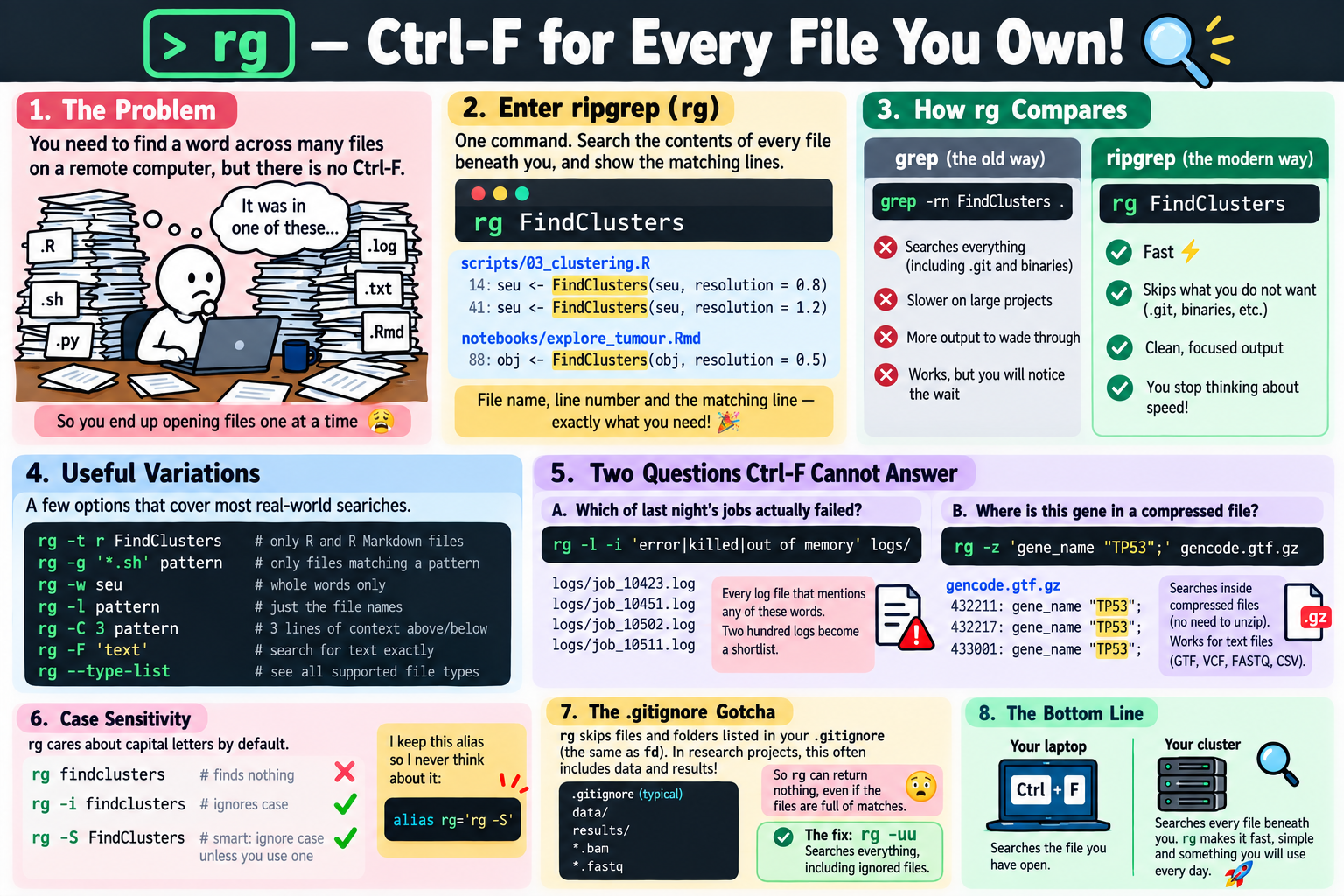
rg FindClusters
That searches the text of every file beneath where you are standing and prints each line containing FindClusters, grouped under the name of its file, with the line number in front:
scripts/03_clustering.R
14:seu <- FindClusters(seu, resolution = 0.8)
41:seu <- FindClusters(seu, resolution = 1.2)

notebooks/explore_tumour.Rmd
88:obj <- FindClusters(obj, resolution = 0.5)
That is the full answer to “what resolution did I use”, along with the exact lines you would go and change. The tool is called ripgrep, but the command is just rg.
You can point it at a particular folder:
rg FindClusters scripts/
One difference from fd, and it catches everyone once: rg pays attention to capital letters by default, so rg findclusters finds nothing. rg -i ignores capitalisation, and rg -S behaves like fd, ignoring capitals unless you type one. I keep the second as an alias so I never think about it:
alias rg='rg -S'
If you have used the terminal before, rg is a replacement for grep -r. The same search in grep is grep -rn FindClusters ., which works, but it also wades through your .git folder, binary files and everything else, and on a large project you notice the wait. rg skips what you almost never want and is fast enough that you stop thinking about speed at all.
A few variations worth knowing 📋 Link to heading
rg -t r pattern: only R and R Markdown files (-t pyfor Python;rg --type-listshows the rest)rg -g '*.sh' pattern: only files matching a pattern of your ownrg -w seu: whole words only, soseudoes not also matchseuratrg -l pattern: just the names of the files that match, not the linesrg -C 3 pattern: three lines of context above and below each matchrg -F 'text': search for the text exactly as typed (see the warning below)
That covers almost everything I use it for.
Two questions Ctrl-F cannot answer 🧬 Link to heading
Which of last night’s jobs actually failed?
rg -l -i 'error|killed|out of memory' logs/
Every log file that mentions any of those three, names only. The | means “or”, and the quotes stop the shell from mistaking it for a pipe. Two hundred job logs become a list of the four you actually need to open.
The reverse question is often more useful:
rg --files-without-match 'Finished' logs/
Every log that never reached the line your script prints when it completes. Swap in whatever yours prints. A job that died without writing anything useful will not show up in a search for errors, but it shows up here.
Where is this gene in an annotation file I never unzipped?
rg -z 'gene_name "TP53";' gencode.annotation.gtf.gz
-z searches inside compressed files, so there is no decompressing first. The quotes and the semicolon are deliberate: they match TP53 itself rather than TP53BP1 or TP53I3. This works for any text format, GTF, VCF, FASTQ, CSV. It does not work for BAM, which is binary; that is still a job for samtools.
The defaults that will hide things ⚠️ Link to heading
The same .gitignore problem as fd. rg follows the same rules: it skips anything in your .gitignore, hidden files and folders, and binary files. In a research project where data/ and results/ are ignored, a search from the top of the project quietly leaves them out.
rg -uu turns that filtering off, and rg -uuu searches binary files too. Naming a file directly always searches it regardless, which is why the GTF example above works even if the file lives in an ignored folder. I keep the same kind of alias as last time:
alias rgu='rg -uu' # rg unrestricted
(Not rga, which is already the name of a different tool, ripgrep-all.)
What you type is a pattern, not plain text. rg reads your search as a regular expression, a small language where some symbols have special meanings. Most of the time you never notice. Then you search an R script for this:
rg 'seu$seurat_clusters'
and it finds nothing, even though the line is all over your code, because to rg $ means “end of the line”. Dots, brackets and parentheses have the same problem. -F tells rg to search for the text exactly as typed:
rg -F 'seu$seurat_clusters'
rg -F 'adata.obs["leiden"]'
Keep the single quotes too. Inside double quotes the shell tries to expand $seurat_clusters itself before rg ever sees it. My rule: if the thing I am searching for contains a symbol, I add -F.
Names, then contents 🤝 Link to heading
fd finds the file. rg finds the line. They were built to sit side by side, with the same ignore rules and the same habits, so whatever you learned last week carries straight over.
If you installed bat-extras after the bat post, batgrep runs rg and shows each match with bat’s highlighting around it. Optional, but pleasant when you want to read the surrounding code rather than just find it.
Setup 🛠️ Link to heading
brew install ripgrep
cargo install ripgrep
conda install -c conda-forge ripgrep
On Debian and Ubuntu, sudo apt install ripgrep installs it as rg with no renaming this time. On a cluster where you cannot install software, prebuilt binaries are on the project’s GitHub releases page: the x86_64-unknown-linux-musl build is fully self-contained, so download it into ~/.local/bin and it works.
The same note as last time: grep is installed on every machine in existence and rg is not, so keep grep for scripts other people run. For your own interactive work, rg is the one to reach for.
The bottom line 🎯 Link to heading
Ctrl-F is one of the first things anyone learns on a computer, because “where does this word appear” is such an ordinary thing to ask. In a project, that word is spread across hundreds of files, and the terminal’s answer has been to open them one at a time or to remember grep’s flags.
rg plus a word is the whole thing. Once you have it, “which script did that” and “which job failed” stop being afternoons and become things you simply ask.
Next post: yazi, and a file manager that brings zoxide, fd and ripgrep together in one window.