Most of this series has been about getting around in the terminal. But most of the actual work, writing an R script, fixing a config file, reading a notebook, happens in an editor: VS Code, or Positron if you came from RStudio.
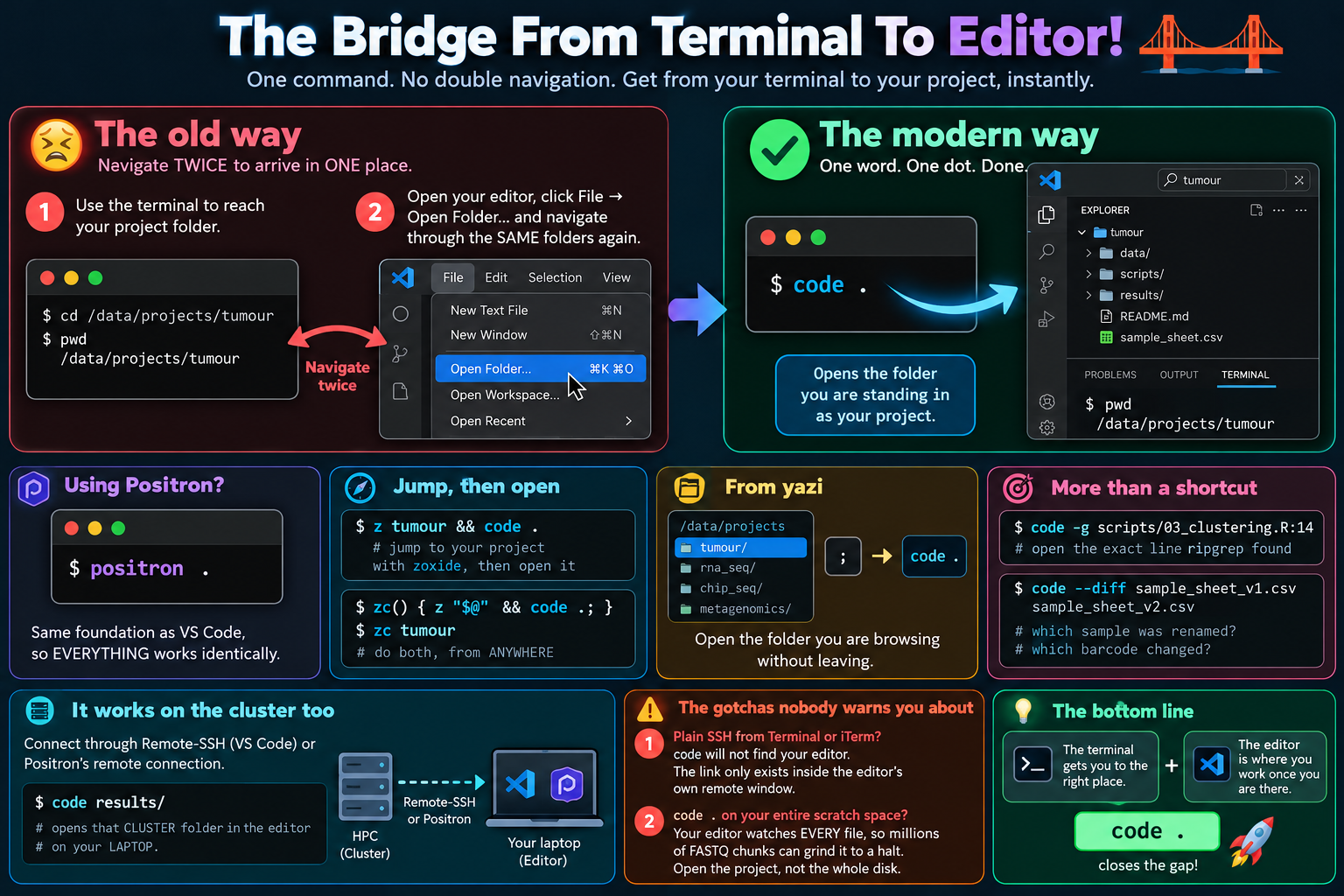
So here is a routine you may recognise. You use the terminal to get to the right project folder. Then you switch to your editor, click File, then Open Folder, and walk through the same folders all over again in a dialog box. You navigate twice to arrive in one place.
One word fixes that.
The whole idea 💻 Link to heading
code .
The dot means “here”. Your editor opens with the folder you are standing in as the project: files in the sidebar, and a terminal inside the editor already sitting in that folder.
If you use Positron, the command is:
positron .
Positron is built on the same open-source foundation as VS Code, so everything in this post works identically. Just swap the word.
Jump, then open 🚀 Link to heading
code . gets really useful when you pair it with the way you move around.
With zoxide, two commands become one line:
z spatial && code .
The && means “if the first part worked, do the second”. Jump to your spatial project, then open it. If you do this a lot, give it a name in your shell configuration:
zc() { z "$@" && code .; }
Now zc spatial takes you from anywhere on the machine to that project open in your editor. Positron users swap code for positron inside the braces.
From yazi, the same idea is two keys away: press ;, type code ., and the folder you are browsing opens in your editor while yazi stays where it was.
A few variations worth knowing 📋 Link to heading
code script.R: open a single file rather than a foldercode -r .: reuse the editor window you already have instead of opening a new onecode -g script.R:42: open the file with the cursor on line 42code --diff old.csv new.csv: compare two files side by side
All of them work with positron in place of code.
Two things that make it more than a shortcut 🧬 Link to heading
Go from a search result to the exact line.
ripgrep tells you which file and which line:
scripts/03_clustering.R
14:seu <- FindClusters(seu, resolution = 0.8)
code -g takes you there:
code -g scripts/03_clustering.R:14
The editor opens with the cursor on the line you want to change. Search in the terminal, edit in the editor, no scrolling in between.
See what changed between two versions of a file.
code --diff sample_sheet_v1.csv sample_sheet_v2.csv
Both files open side by side, with every changed line highlighted. Which sample was renamed, which barcode was corrected, which row someone deleted. When a sequencing run comes back with a sample missing, this is often the quickest way to find out why.
It works on the cluster too 🖥️ Link to heading
If you connect to a cluster through your editor (Remote-SSH in VS Code, or Positron’s own remote connection), the terminal inside that editor window gets its own code or positron command. Running code results/ there opens that cluster folder in the editor on your laptop.
That is the real bridge. The terminal on the cluster and the editor on your laptop behave as one machine.
Where it will not work ⚠️ Link to heading
Not from a plain SSH session. If you log into the cluster from Terminal or iTerm rather than from inside your editor, code will not find your editor. The cluster has no editor installed; the link back to your laptop only exists inside the editor’s own remote window. My rule: plain SSH for quick browsing with yazi, the editor’s terminal for anything I am going to edit.
Not on your entire scratch space. Your editor keeps an eye on every file in the folder you open so it can update the sidebar and search. Open a project folder and that is fine. Open a folder holding millions of FASTQ chunks and pipeline intermediate files, and on a cluster it can slow everything to a crawl. Open the project, not the whole disk.
Setup 🛠️ Link to heading
On macOS, the command has to be switched on once. Open your editor, press Cmd+Shift+P, and run:
Shell Command: Install 'code' command in PATH
In Positron the same entry is called Install 'positron' command in PATH.
On Linux and Windows the installer usually does this for you. Either way, check it worked with:
code --version
The bottom line 🎯 Link to heading
The terminal is good at getting you to the right place. The editor is good at what you do once you are there. For most people the gap between them is a dialog box and a second walk through the same folders.
code . closes it. Find the folder however you like, with zoxide, fd or yazi, and one word later you are working in it.
Next post: the capstone, and the whole series pulled together into one setup you can copy.