Two posts ago I said the cluster has no Finder window. No folders you can see, no clicking around, just a blank prompt. fd gave you back the search box. ripgrep gave you back Ctrl-F.
This post gives you back the window itself.
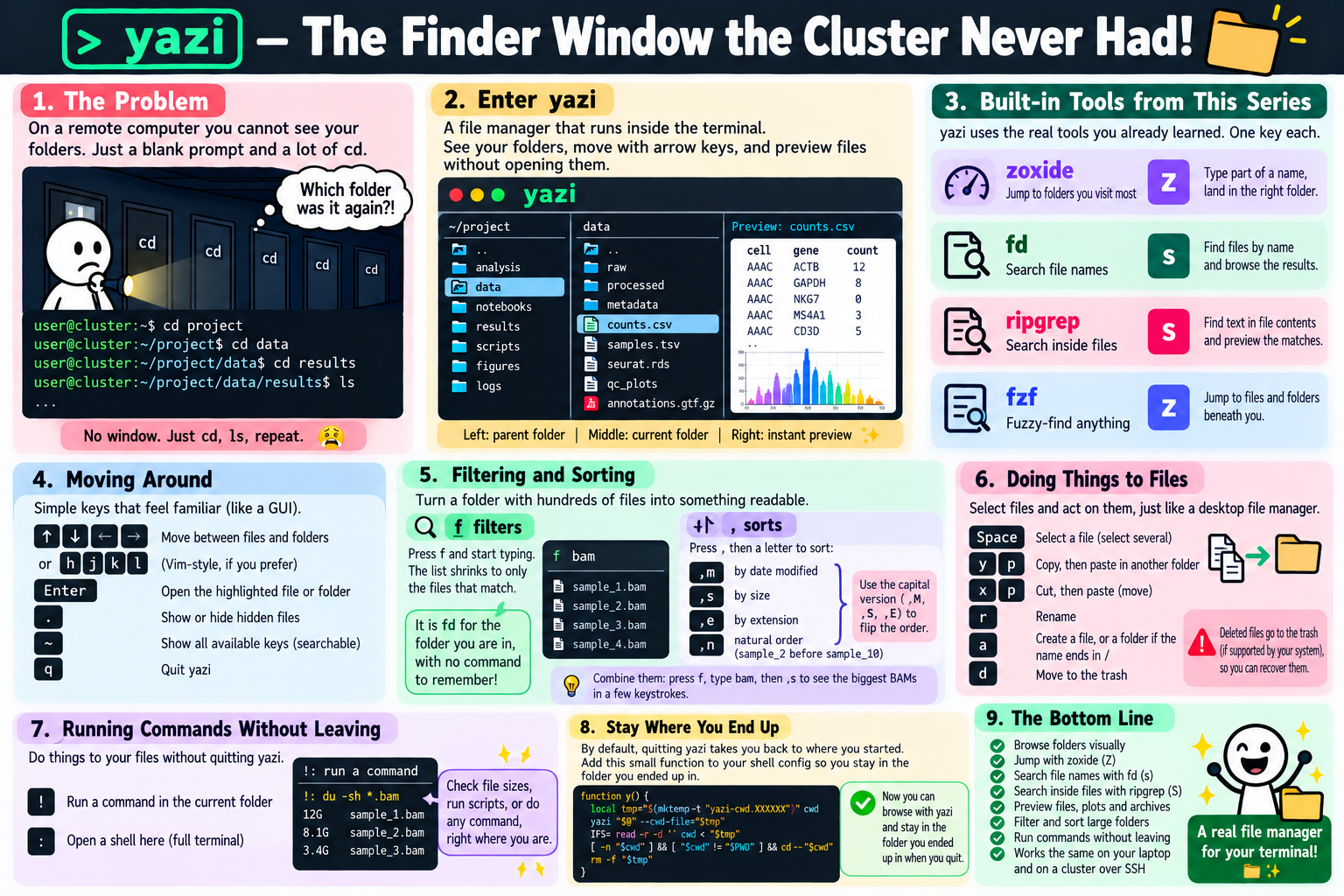
yazi is a file manager that runs inside the terminal. You see your folders, you move through them with the arrow keys, and you see what is inside a file before you open it. It works the same on your laptop as it does on a cluster you reached over SSH, because to the cluster it is just another terminal program.
And it does not replace the tools from this series. It uses them.
The whole idea 🗂️ Link to heading
yazi
The screen splits into three columns. The middle one is the folder you are in. The left one is the folder above it. The right one is a preview of whatever you have highlighted: the contents of a subfolder, the first lines of a script, the rows of a CSV.
If you have ever used column view in the Mac Finder, you already know how to use it.
Moving around 📋 Link to heading
- Arrow keys (or
hjkl): move between files and folders Enter: open the highlighted file or folder.: show or hide hidden files~: show every key yazi knows, searchableq: quit
That is enough to use it today. The arrow keys alone get you surprisingly far.
Filtering and sorting 🧹 Link to heading
A pipeline output folder can hold hundreds of files. Two keys turn that into something you can read.
f filters. Press it and start typing, and the folder shrinks as you type to only the files whose names match. Type bam and every other file disappears from view. Esc brings them back. It is fd for the folder you are standing in, with no command to remember.
, sorts. Press the comma and yazi waits for a second letter that says how:
,m: by date modified, so last night’s output sits together at one end of the list,s: by size, so the file eating your quota is impossible to miss,e: by extension, so all the BAMs sit together and all the logs sit together,n: back to natural order, wheresample_2comes beforesample_10
Each one has a capital version that flips the order (,M, ,S, ,E), so whichever end you want at the top is one key away. Combine the two, f for bam and then sort by size, and you have the biggest BAMs in a folder in a few keystrokes.
This series, one key each 🔑 Link to heading
This is the part that makes yazi the natural place for this series to arrive.
Z: jump to a folder with zoxide. Type part of a name, and you land in the folder you visit most that matches it.s: search file names with fd. The results appear as a list you can browse and preview like any other folder.S: search inside files with ripgrep. Every file containing your word, listed, with a preview next to it.z: fuzzy-find anything beneath you with fzf, a tool I have not covered here but which yazi uses the same way.
Esc takes you back from a search to where you were.
None of this is yazi doing its own version of these jobs. It calls the real tools. Everything you learned about them still applies, and if one is not installed, that key simply does not work until it is.
Doing things to files ✂️ Link to heading
Space: select a file (select several to act on them together)ythenp: copy, then paste in another folderxthenp: cut, then paste, to mover: renamea: create a file, or a folder if the name ends in/d: move to the trash (see the warning below)
Running commands without leaving 💻 Link to heading
Sometimes you browse to a folder because you want to do something there: submit a job, start R, run a quick check. You do not have to quit to do it.
; opens a small prompt and runs whatever you type in the folder you are looking at, while yazi stays on screen:
sbatch run_qc.sh
The job submits and you carry on browsing.
: does the same, but hands the whole screen over to the command until it finishes. That is the one for anything you interact with:
R
R opens in the folder you were browsing. Quit R and you are back in yazi, exactly where you left it.
The rule is easy: ; for things you fire and forget, : for things you want to watch or type into.
Two things a Finder window cannot do on a cluster 🧬 Link to heading
Look at a plot without downloading it.
On a cluster, checking a figure normally means copying it to your laptop, opening it, finding something wrong, and doing the whole thing again. In a terminal that can display images (Ghostty, kitty, WezTerm and iTerm2 all can), yazi previews PNGs and PDFs right in the preview column, over SSH, the moment you highlight them. Arrow down through a folder of QC plots and you have looked at all of them in ten seconds.
The same preview column shows you what is inside a .tar.gz without extracting it, which is the question that sent you to ouch in the first place.
Stay where you ended up.
By default, quitting yazi drops you back in the folder you started from, which feels wrong the first time: you browse somewhere, quit, and you are not there. The fix is a small function from yazi’s documentation, added to your shell configuration:
function y() {
    local tmp="$(mktemp -t "yazi-cwd.XXXXXX")" cwd
    yazi "$@" --cwd-file="$tmp"
    IFS= read -r -d '' cwd < "$tmp"
    [ -n "$cwd" ] && [ "$cwd" != "$PWD" ] && builtin cd -- "$cwd"
    rm -f -- "$tmp"
}
Now start it with y instead of yazi, and when you quit with q, your terminal follows you to wherever you were. I never type yazi any more.
Deleting does not free your quota ⚠️ Link to heading
One thing to know before your quota email arrives.
d does not delete. It moves files to a trash folder, exactly like the bin on your laptop. That is a kindness on a laptop. On a cluster it means a 40 GB BAM you “deleted” is still sitting in a trash folder, still counting towards your quota, and dust will happily point at it.
D deletes permanently, after asking you to confirm. On a cluster, that is the one you want when the goal is space. Use it with the same care as rm, because that is what it is.
Setup 🛠️ Link to heading
brew install yazi fd ripgrep zoxide fzf
yazi itself is one install. The others are what make s, S, Z and z work, so install whichever you do not already have from earlier posts. For image and PDF previews, the yazi documentation lists a few optional extras (ffmpeg, poppler, 7-Zip and friends).
On a cluster where you cannot install software, download the Linux zip from the project’s GitHub releases page (the x86_64-unknown-linux-musl build is self-contained) and put both programs inside it, yazi and ya, into ~/.local/bin.
If the icons appear as empty boxes, that is your laptop’s font, not the cluster. Installing a Nerd Font locally and setting your terminal to use it fixes it, even over SSH, because your own terminal is what draws the screen.
The bottom line 🎯 Link to heading
This series started with ls, a command for seeing what is in a folder. Eight posts later, the folder, the jump, the search box and Ctrl-F all live in one window, and the window works on a machine you have never physically seen.
That is the closest the terminal gets to the computer you are used to. It is also, for a lot of people, the moment the terminal stops feeling like somewhere you have to go and starts feeling like somewhere you work.
Next post: the code command, and opening any folder you are standing in straight into VS Code or Positron.